Docs
Documentation
Guides for getting the most out of Linktanium - tabs, panels, widgets, and more.
Settings
Scale, theme, visual effects, bars, and text preferences.
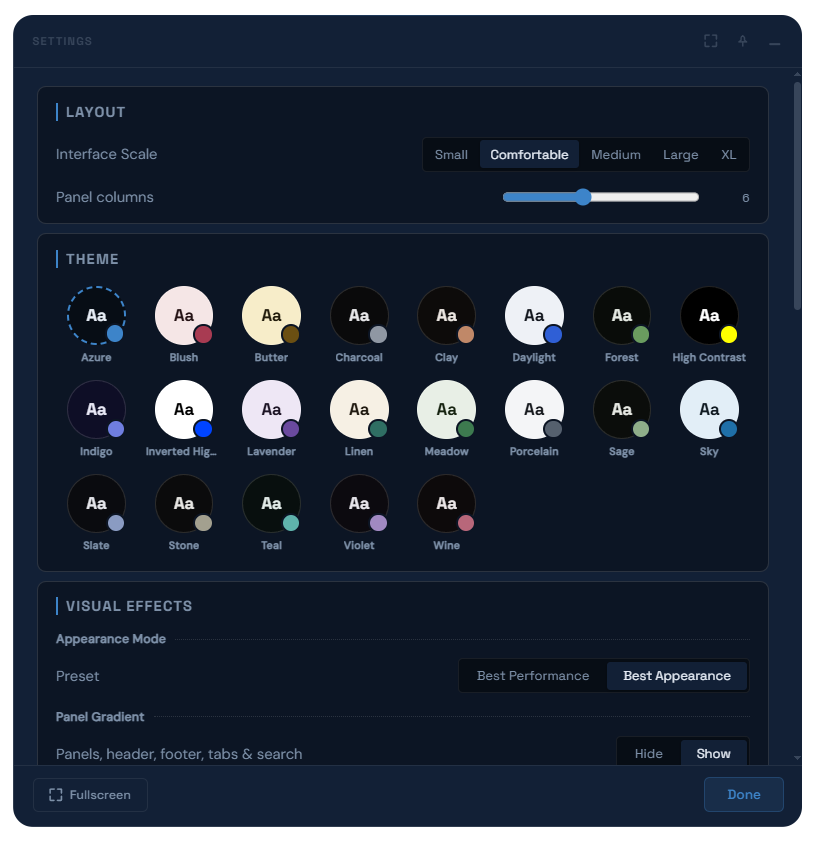
- Open Settings from the profile avatar menu in the top-right corner.
- All settings are saved automatically to your account, and this dialog is itself a pinnable dialog.
Layout
- Interface Scale resizes the entire UI - choose from Small, Comfortable, Medium, Large, or XL. Comfortable is the default; larger sizes are useful on high-resolution displays.
- Panel columns sets how many link panels fit per row in the dashboard grid (2 to 12).
Theme
- Pick a color theme from the swatch grid - each chip previews its background, text, and accent color.
Visual Effects
- Appearance Mode presets bundle the five effects below into one click: Best Performance (all off, for lower-powered devices) or Best Appearance (all on).
- Panel Gradient toggles the gradient on panels, header, footer, tabs, and the search bar.
- Background Gradient toggles the gradient behind the panel and widget area.
- Dither toggles a subtle noise texture over the panel and widget area.
- Dialog Backdrop switches the overlay behind open dialogs between Dim and Blur.
- Drop Shadow toggles the shadow under panel and widget cards.
Interface Bars
- Show or hide the widget bar independently on desktop and mobile - hiding it on mobile keeps the dashboard clean on smaller screens.
- Show or hide the search bar independently on desktop and mobile.
Link & Panel Text
- Open Links In sets your account-wide default (Same Tab or New Tab) for clicking a link - see Links & Notes for the per-link override that takes priority over this.
- Link & List Padding adjusts the space around each link/note row. Locked (default) sets all four sides together with one slider; unlock it to set Top, Right, Bottom, and Left independently.
- Link Font Size scales link/note text and their icons together.
- List Title Padding and List Title Font Size apply the same padding lock/unlock pattern and font scaling to link panel titles instead.
Search Engine
- Choose your default search engine - switching it from the search bar itself only changes it for that session, this is what it resets to next time.