Docs
Documentation
Guides for getting the most out of Linktanium - tabs, panels, widgets, and more.
Links & Notes
Add, edit, reorder, and move links and notes.
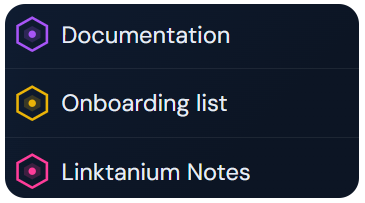
- Each panel holds links (URLs that open in a new tab) and notes (rich text documents).
- Click the + icon on a panel to add a link or note. Switch between the Link and Note tabs in the dialog.
- Click a link on the panel card to open it in a new tab.
- Click a note on the panel card to open the full note editor.
- Drag links between panel cards to move them to a different panel.
- Within a panel card, drag links up or down to reorder them.
- Click the ⋮ button on a link or note to edit or delete it.
Icons & Colors
- Every link and note can have its own custom icon, set from the same icon picker used for link panels - choose from the shared Linktanium icon library or any icon you've uploaded yourself.
- Click Customize colors in the Edit dialog to set a background (flat color or a linear/radial gradient with adjustable direction) and a text color, with a live preview.
- Tap a theme swatch to apply a ready-made color combo instantly, or set your own colors and click Save current colors as a theme to reuse it on other links and notes later.
- Saved themes can be deleted from the same swatch grid.
Link-Only Options
- When adding or editing a Web Link, the Open In control overrides where that one link opens - Default (follows your account-wide Settings), Same Tab, or New Tab.
- Switch to Linktanium Feature mode (instead of Web Link) to make a link that opens an app feature directly - My Account, Billing, My Profile, Change Password, Backup My Data, Settings, My Icons, Documentation, or Log Out - rather than a URL.
Note Editor Dialog
- Like the Panel Dialog, the note editor can be pinned, dragged, resized, and set to fullscreen - see the Pinnable Dialogs page for those controls.
- A status indicator above the toolbar shows Saving… while your edit is being saved, then switches to Saved - the same status is echoed next to the Done button in the footer.
- See the Note Editor page for everything inside the editor itself - blocks, display modes, filtering, and import/export.
Actions
Add a linkPanel + → Link tab
Add a notePanel + → Note tab
Add a feature shortcutPanel + → Link tab → Linktanium Feature
Edit a link or note⋮ button → Edit link/note
Change iconEdit dialog → icon swatch
Customize colorsEdit dialog → Customize colors
Override link open behaviorEdit dialog → Open In
Delete a link or note⋮ button → Delete link/note
Move link to another panelDrag link onto target panel
Reorder links in panelDrag link up/down