Docs
Documentation
Guides for getting the most out of Linktanium - tabs, panels, widgets, and more.
Search Bar
Multi-engine web search from the dashboard.
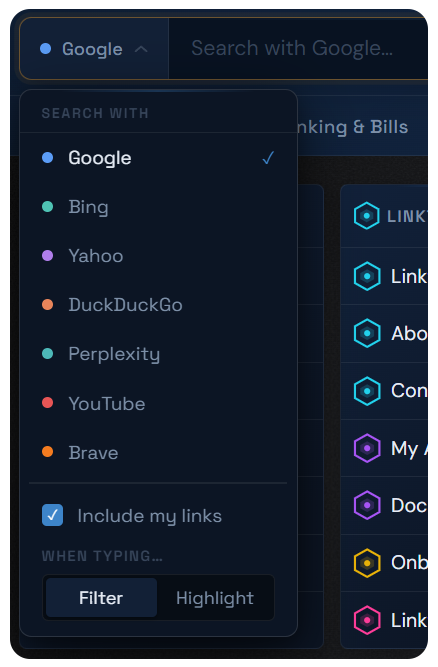
- The search bar at the top lets you search the web without leaving your dashboard.
- Click the engine icon on the left of the search bar to switch between search engines - Google, Bing, Yahoo, DuckDuckGo, Perplexity, YouTube, and Brave.
- Your default engine is set from Settings; switching it from the search bar itself only changes it for the current session.
- Type your query and press Enter - results open in a new tab.
- Click the × that appears in the field to clear your query.
- The search bar can be shown or hidden independently for desktop and mobile from Settings.
Searching Your Links
- Open the engine menu and turn on Include my links to also search your own tabs, panels, links, and notes as you type - not just the web.
- With it on, choose how matches are shown: Filter hides everything that doesn't match (non-matching link panels disappear entirely, non-matching tabs dim), or Highlight marks matches without hiding anything else.
- This is the mechanism behind the match dot on tabs and the panel-hiding behavior on the Link Panels and Links & Notes pages.
- Your Include my links and Filter/Highlight choices are remembered for next time.
Actions
Search the webType query + Enter
Switch search engineClick engine icon (left of bar)
Clear query× in the search field
Search your own linksEngine menu → Include my links
Choose filter vs highlightEngine menu → Filter / Highlight
Hide/show search barSettings → Search Bar