Docs
Documentation
Guides for getting the most out of Linktanium - tabs, panels, widgets, and more.
Note Editor
Block-based rich text editor with checkboxes and filters.
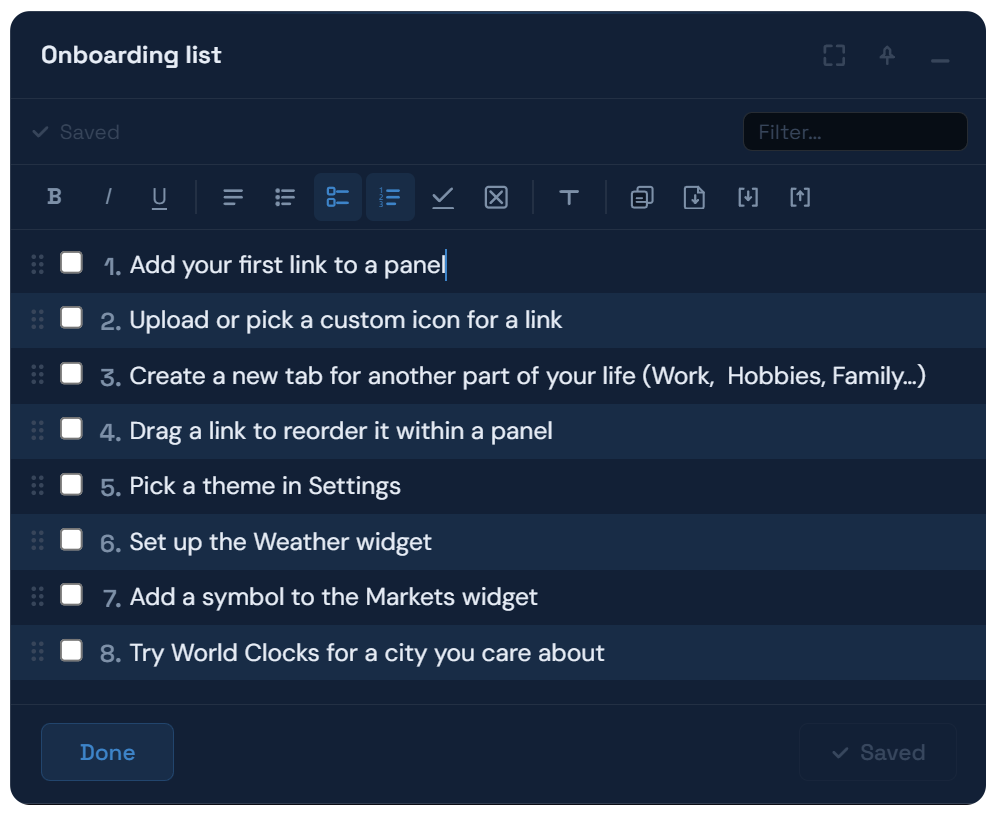
Editing
- Notes use a block-based editor - each line is its own block.
- Press Enter to add a new block, Backspace on an empty block to remove it.
- Use Arrow Up / Down to move between blocks without the mouse.
- The toolbar applies bold (Ctrl+B), italic (Ctrl+I), and underline (Ctrl+U) to selected text.
- Drag blocks by their handle to reorder them.
- The note auto-saves as you type - a status indicator above the toolbar (echoed again next to Done in the footer) shows Saving… then Saved, no manual save required.
Block Types & Modes
- Each block is either Plain text or Bullet - set per block with the corresponding toolbar buttons.
- Checkbox mode is a whole-note toggle that turns every block into a checkable item (taking over from its own Bullet/Plain text type while it's on). Use Sort checked to bottom to auto-sort checked items down, or Uncheck all to reset them.
- Numbered mode is a separate whole-note toggle that prefixes every block with a line number - it works independently of Checkbox mode, so a note can be numbered and checkable at the same time.
- Plain text mode replaces the entire block editor with a single raw textarea (with its own "Start typing…" placeholder), useful for paste-heavy editing or importing large blocks of text. The toolbar and filter bar are hidden while it's on, other than the button to turn it back off.
Filter & export
- Use the filter bar to search within the note - non-matching blocks are hidden while you type. It's only available outside Plain text mode.
- The copy menu copies the note as plain text, with checkboxes, with line numbers, or both - the checkbox/number options only appear once those modes are actually on.
- The download menu saves the note as a
.txtfile, or exports all blocks as a.jsonfile for backup. - Import a previously exported
.jsonfile to replace or append to the current content.