Docs
Documentation
Guides for getting the most out of Linktanium - tabs, panels, widgets, and more.
Change Password
Change your password, or reset a forgotten one.
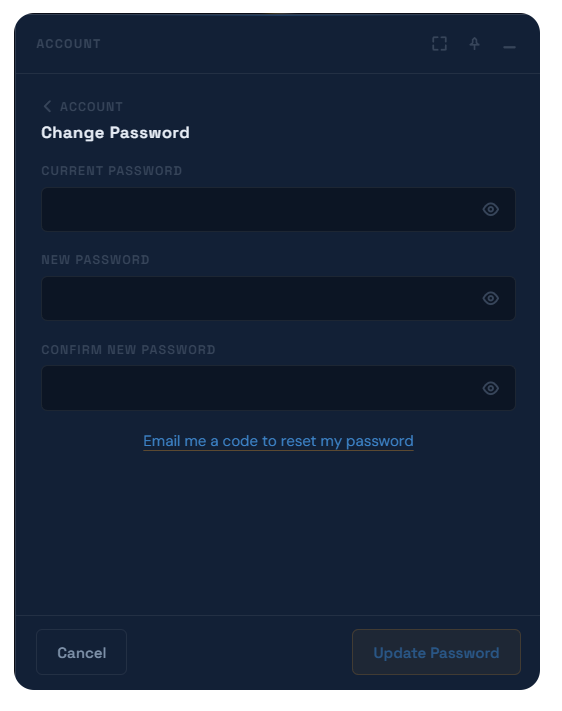
- Open from Account → Change Password.
- Enter your Current Password, then your New Password and Confirm New Password. Each field has a show/hide eye toggle.
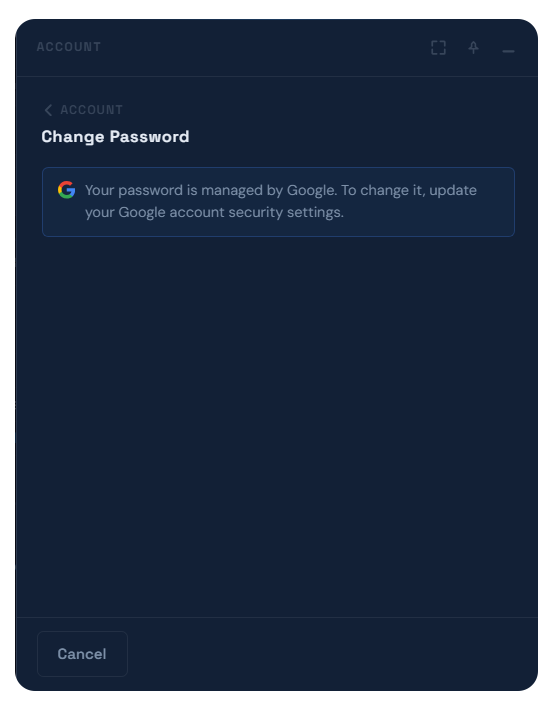
- If you signed in with Google, this screen shows a notice instead - your password is managed by your Google account security settings.
Forgot Your Password?
- Click Email me a code to reset my password at the bottom of the Change Password screen - you don't need to know your current password to use this.
- A 6-digit reset code is emailed to your account address.
- Enter the code along with a new password and confirmation to complete the reset.
Actions
Open Change PasswordAccount → Change Password
Update passwordChange Password → Update Password
Request a reset codeChange Password → Email me a code to reset my password
Complete a resetEnter code + new password → Reset Password