Docs
Documentation
Guides for getting the most out of Linktanium - tabs, panels, widgets, and more.
Pinnable Dialogs
Pin, drag, resize, and adjust dialog opacity.
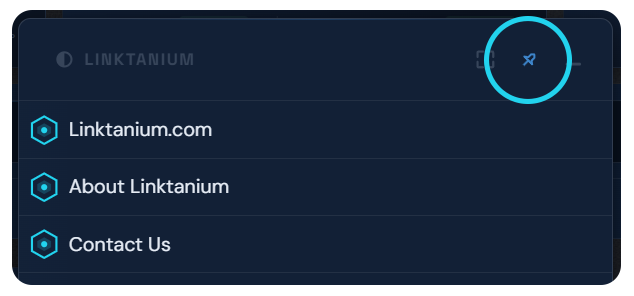
- Most dialogs - Docs, Settings, Account, Weather, Clock, Markets, Notes, and Panel - can be pinned. Pinned dialogs stay open and float over the dashboard.
- Dragging the title bar pins the dialog for you if it isn't already - you don't need to click the pin icon first, just start dragging.
- Drag any edge or corner to resize a pinned dialog.
- The fullscreen button expands the dialog to fill the entire window - it also pins the dialog first if needed.
- When pinned, the opacity button (half-circle icon, top-left) adjusts the dialog background from fully opaque to fully transparent; lower settings also blur whatever is showing through behind it.
- Click anywhere on a pinned dialog to bring it to the front, in case more than one is open and overlapping.
- While pinned, clicking outside the dialog does not close it - use the minimize button (dash icon) instead. Unpinned dialogs still close on an outside click.
- Pin position, size, and opacity are all remembered per dialog across sessions.
Controls
Pin / unpinPin icon (top-right of dialog)
Move dialog (pins it too)Drag title bar
Resize dialogDrag any edge or corner
Bring to frontClick anywhere on the dialog
Adjust background opacityHalf-circle icon (when pinned)
FullscreenExpand icon (top-right)
Minimize / closeDash icon (top-right)