Docs
Documentation
Guides for getting the most out of Linktanium - tabs, panels, widgets, and more.
Panel Dialog
The floating link viewer that opens on panel click.
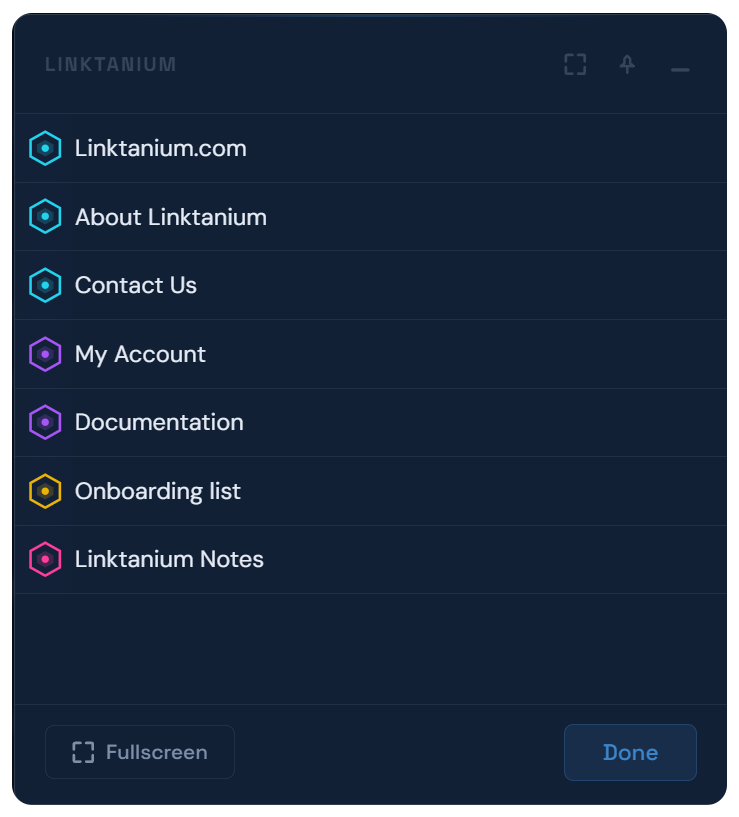
- Clicking a panel title opens a floating dialog listing all links and notes in that panel.
- An empty panel shows "No links in this panel yet." until you add one.
- Click a link to open it - in a new tab or the same tab, depending on that link's own Open In setting, or your account-wide default from Settings if it has none. See the Links & Notes page for that override.
- Click a Linktanium Feature link to jump straight to that app screen, same as clicking it on the panel card.
- Click a note to open the full note editor - this dialog closes automatically and the note editor takes its place.
- Drag entries up or down within the dialog to reorder them - the order is shared with the panel card view.
- Custom icons and colors set on a link or note (see Links & Notes) carry over into this view too.
- The dialog can be pinned, dragged, resized, and set to fullscreen. See the Pinnable Dialogs article for details.