Docs
Documentation
Guides for getting the most out of Linktanium - tabs, panels, widgets, and more.
Link Panels
Group and organize links by topic within a tab.
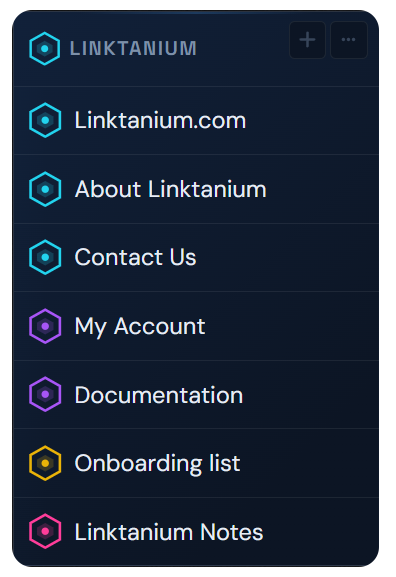
- Link panels are link groups inside a tab. Each link panel has a title and holds any number of links and notes.
- An empty link panel shows "No links yet - drag one here" until you add its first link or note.
- Click the ⋮ button on a link panel to open its menu - rename, move to another tab, or delete.
- Drag a link panel by its title bar to reorder link panels within the current tab.
- Click the link panel title to open the Panel Dialog - a floating view of all links in that link panel.
- While searching (with "Include my links" on), a link panel with no matching links hides entirely rather than just dimming - see the Search Bar page for how the search itself works.
Editing a Link Panel
- The ⋮ menu's Edit Link Panel option lets you rename the panel and give it a custom icon, in the same dialog.
- Click the icon swatch to open the icon picker - choose from the shared Linktanium icon library or any icon you've uploaded yourself.
- Deleting a link panel asks you to confirm twice before it happens - it permanently removes all links and notes inside it.
Actions
Add a link panel+ Add Link Panel (bottom of tab)
Rename link panel⋮ button → Edit Link Panel
Change link panel icon⋮ button → Edit Link Panel → icon swatch
Move to another tab⋮ button → Move to tab
Delete link panel⋮ button → Delete panel (confirm twice)
Reorder link panelsDrag link panel by its header